The Upcoming view gives you a bird’s eye view of your week while letting you organize your upcoming tasks all in one place. Review your plans for days, weeks, or even months ahead – all up to two years!
Review your upcoming tasks
See every task scheduled for the next 7 days (and beyond) across all your projects.
Quick tip
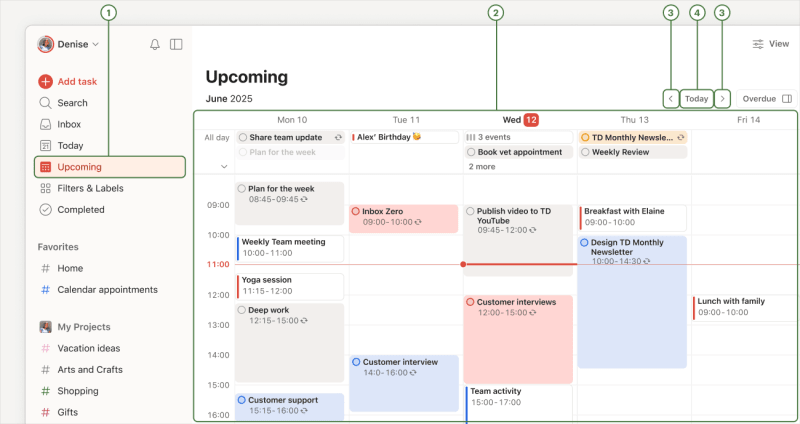
- Click Upcoming in the sidebar.
- Scroll through the list to see tasks scheduled for any date in the future.
- Click the left and right arrow buttons at the top-right to view a different week.
- Click the Today button at the top-right to get back to today’s date.
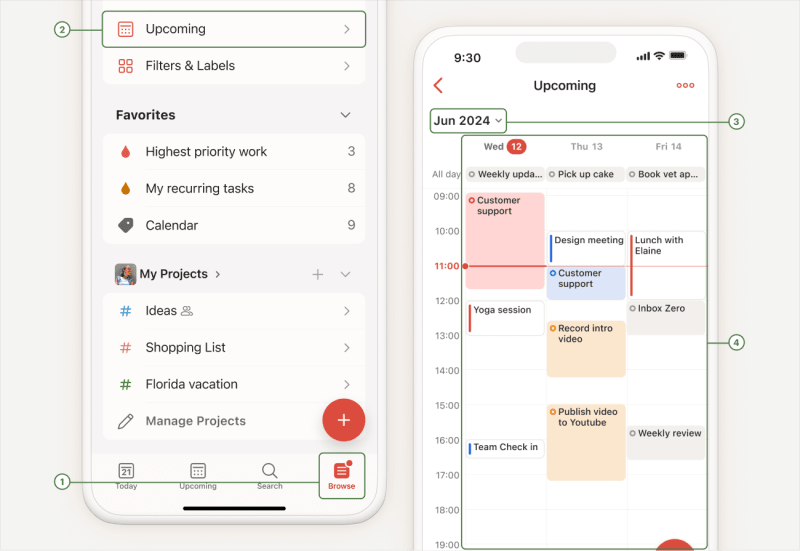
- Tap Browse in the navigation bar.
- Tap Upcoming.
- Scroll down the list to see tasks scheduled for any date in the future.
- Swipe right to left on the week picker at the top to display a different week.
- Tap any day of the week to see the tasks scheduled for that day.
- Tap the calendar icon at the top-left to get back to today's date.
- Tap the current month at the top-left to select a past or future date. You'll see tasks scheduled for that day.
Note
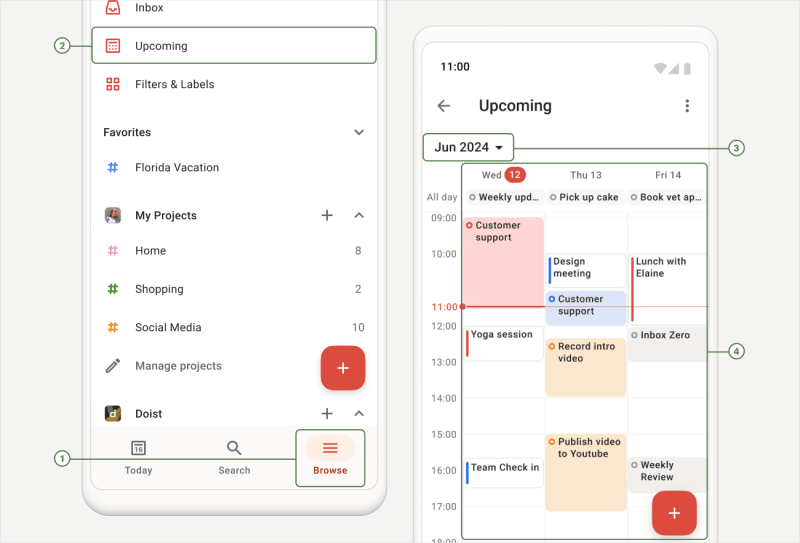
- Tap Browse in the navigation bar.
- Tap Upcoming.
- Scroll down the list to see the tasks scheduled for any date in the future.
- Swipe right to left on the week picker at the top to display a different week.
- Tap any day of the week to see the tasks scheduled for that day.
- Tap the calendar icon at the top-left to get back to today's date.
- Tap the current month at the top-left to select a past or future date. You'll see tasks scheduled for that day.
Note
Schedule your tasks
Schedule dates in minutes, so you know exactly what’s coming up.
Click Upcoming in the sidebar. Schedule a task based on your current layout:
- List: Scroll down the task list or use the week picker at the top to jump to any date in the future. Then, click Add task to create a task for that selected day.
- Board: Scroll through the day columns or use the week picker at the top to jump to any date in the future. Then, click Add task at the bottom of the selected day column to create a task.
Calendar (paid): Click the Plan button to open the Plan sidebar. Drag a task to a date in the calendar to schedule it. Expand or shorten the task to add a duration.
Note
The Plan sidebar shows overdue, all-day, time-blocked, and unscheduled tasks with a deadline (up to 7 days ahead). Click any task or drag and drop it into the calendar to reschedule it.
- Tap Browse in the navigation bar.
- Tap Upcoming.
- Scroll down the task list or use the week picker at the top to go to any date in the future.
- Drag the Dynamic Add button from the bottom-right to the day where you'd like to create and schedule a new task.
- Tap Browse in the navigation bar.
- Tap Upcoming.
- Scroll down the task list or use the week picker at the top to go to any date in the future.
Drag the Dynamic Add Button from the bottom-right to the day when you would like to create and schedule a new task.
Quick tip
Touch and hold any date in the week picker to quickly add a task to that day.

Evert · Head of Customer Experience
Reschedule your tasks
Reschedule tasks to free up fully booked days in the week. In Todoist, drag a task across the Upcoming view and to its new date. This ensures your schedule is manageable and doable.
Existing tasks: Drag the task to its new date or hover your cursor over the task. Click the scheduler icon and pick a new date.
If you use the calendar layout, you can also drag tasks from the Plan sidebar to reschedule your overdue, all-day, or time-blocked tasks.
Overdue tasks: Click Reschedule at the top-right.
Existing tasks: Drag the task to its new date, or open the scheduler to choose a new date.
Overdue tasks: Tap Reschedule at the top-right.
Existing tasks: Drag the task to its new date, or open the scheduler to choose a new date.
Overdue tasks: Tap Reschedule at the top-right.
Note
Show or hide future occurrences
If you’ve subscribed to Todoist Pro or Business, you’ll have access to the calendar layout in the Upcoming view. From there, choose whether you want to see or hide all future occurrences of your recurring tasks in the calendar.
On web or desktop, click Display in the top-right. Then, turn Future occurrences on or off. This option is not currently available on the mobile apps.
Note
Best practices for the Upcoming view
As you get the hang of planning your week in advance, the Upcoming view becomes a great tool for looking back at what you’ve achieved, and proactively scheduling tasks for the following week. Here are some tips and best practices to try:
Time-block tasks
Schedule time slots in your day to complete important tasks in Todoist. If you’ve subscribed to Todoist Pro or Business, you can apply the calendar layout and quickly drag the task into the calendar to time-block. This adds a time and duration to the task, making it easy to visualize and create a plan you can stick to. You can also color tasks by priority, label, or project to tell different kinds of work apart at a glance.
Postpone tasks that need more time
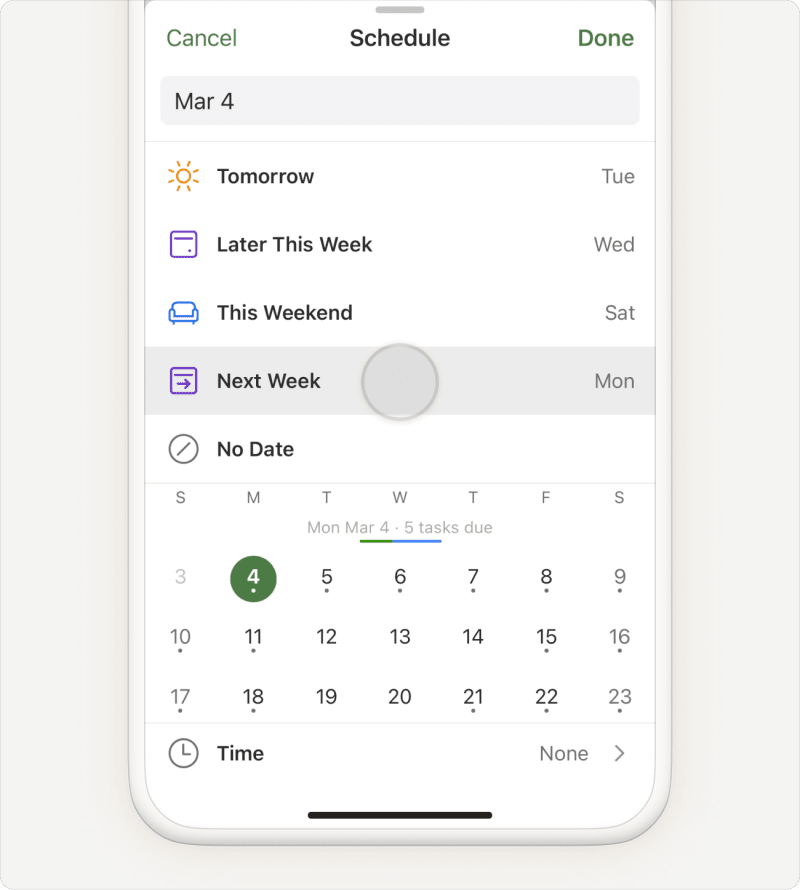
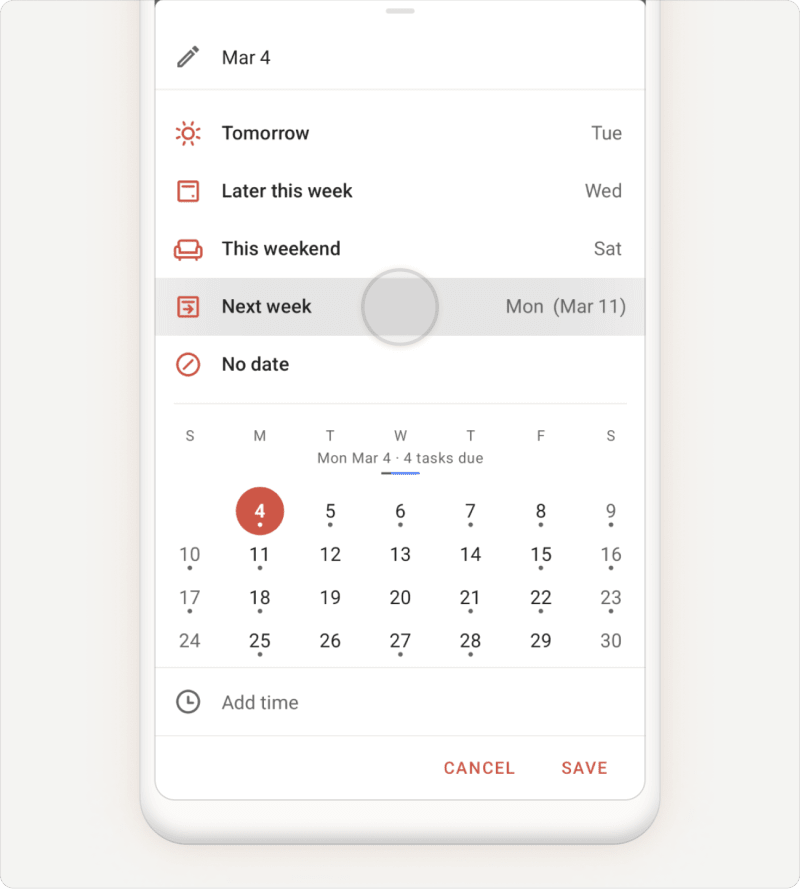
If a task needs more time to complete, postpone it to next week using the Postpone option in the task scheduler.
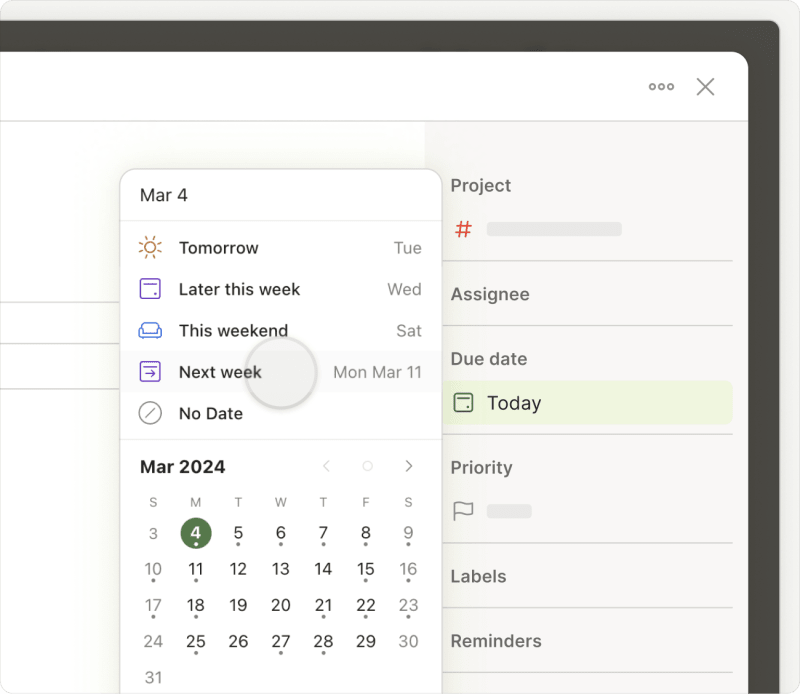
If you’ve subscribed to Todoist Pro or Business, and you're using the calendar layout on the Todoist web or desktop apps, you’ll find a list of your overdue tasks in the Plan sidebar, so you can easily reschedule to a future date.
Quick tip
Review upcoming appointments
It’s nice to get a sense of which appointments are coming up, so you can plan your week accordingly. This is especially useful if you’ve set up your calendar to sync with Todoist.
Add a date and time to any tasks that are time-sensitive. If you're on the paid plan, add additional reminders to make sure you don’t forget them.
Create a recurring task for weekly reviews
Do you prefer reviewing your progress on Friday evenings, or planning for upcoming work on Sunday mornings? Create a recurring weekly task to "Plan for the week”, so it becomes a part of your schedule.
Get in touch
If you're having trouble using the Upcoming view to create or schedule Todoist tasks, get in touch with us.