Personalize the look and feel of Todoist with a color theme that suits you. Every theme is available on all plans, and each one comes in a light and a dark version for any time of day. You can use the same theme on all your devices or a different theme on each one.
Pick one of these themes:
- Todoist
- Moonstone
- Tangerine
- Kale
- Blueberry
- Lavender
- Raspberry
Select your color theme
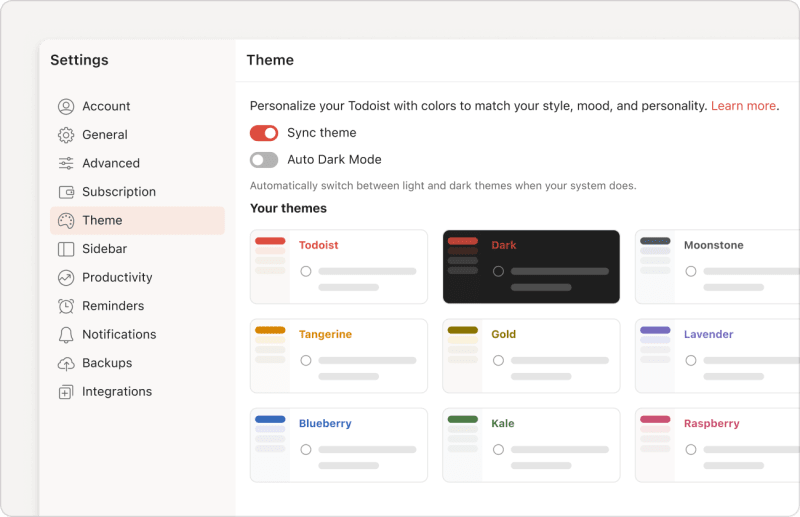
- Click your avatar at the top-left.
- Select Settings.
- Select Theme.
- Select your preferred color theme.
- Under Appearance, select Light, Dark, or System.
- Toggle the Sync Theme option OFF to use different themes across your devices, or ON to use the selected theme on all your devices.
- Click Update to save your changes.
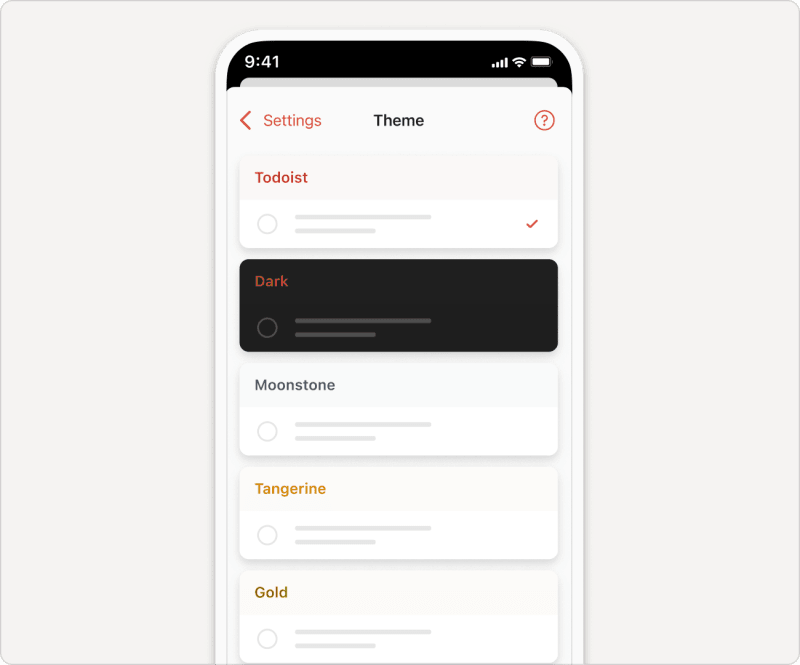
- Tap Browse at the bottom-right.
- Tap the gear icon at the top-right.
- Select Theme.
- Select the theme you’d like to use.
- Under Appearance, select Auto, Light, or Dark.
- Toggle the Sync Theme option OFF to use different themes across your devices, or ON to use the selected theme on all your devices.
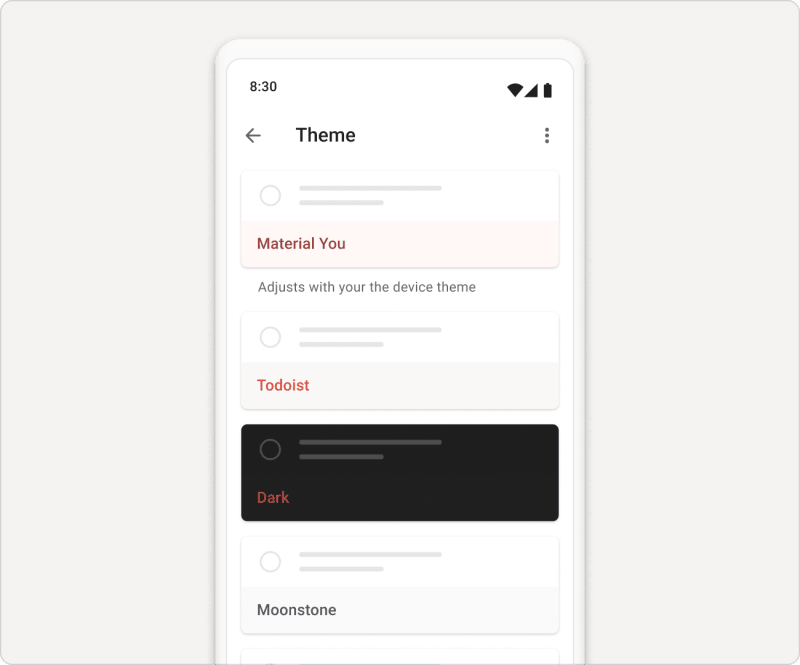
- Tap Browse at the bottom-right.
- Tap the gear icon at the top-right.
- Select Theme.
- Select the theme you’d like to use.
- Tap Appearance and select Automatic, Light, or Dark.
- Toggle the Sync theme option OFF to use different themes across your devices, or ON to use the selected theme on all your devices.
Quick tip
Once you reach Karma Enlightenment, you'll unlock a new mystery theme for your account.
Use dark mode in Todoist
Dark mode works with every color theme. Use the Appearance option in your theme settings to choose how Todoist looks:
- Light: Always use the light version of your theme.
- Dark: Always use the dark version of your theme.
- System (web and desktop), Auto (iOS), or Automatic (Android): Switch between light and dark to match your device’s setting.
Get in touch
If you run into any trouble changing or syncing color themes in Todoist, get in touch with us.