The Inbox is where every new task lands in Todoist when you don’t add it to a project. Use it to capture ideas quickly and get them out of your head. Then, set aside a few minutes each day or week to process your Inbox: move tasks to projects, add dates, and delete what you don’t need.
Add a task
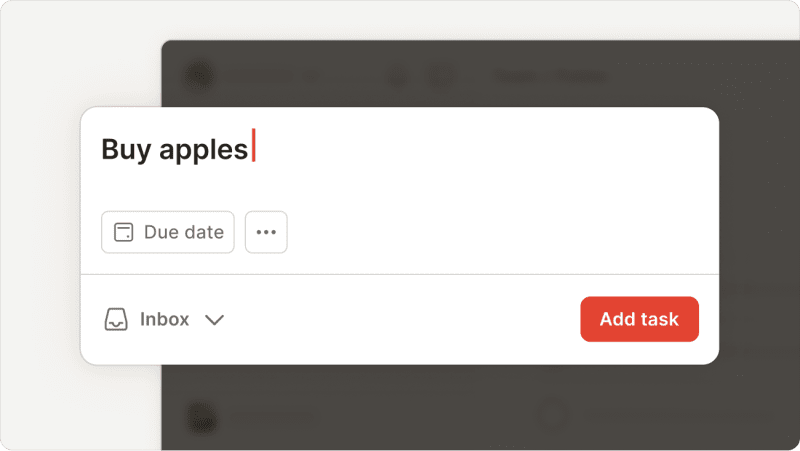
- Click Add task in the navigation menu.
- Enter the task name.
- Click Add task to save the task.
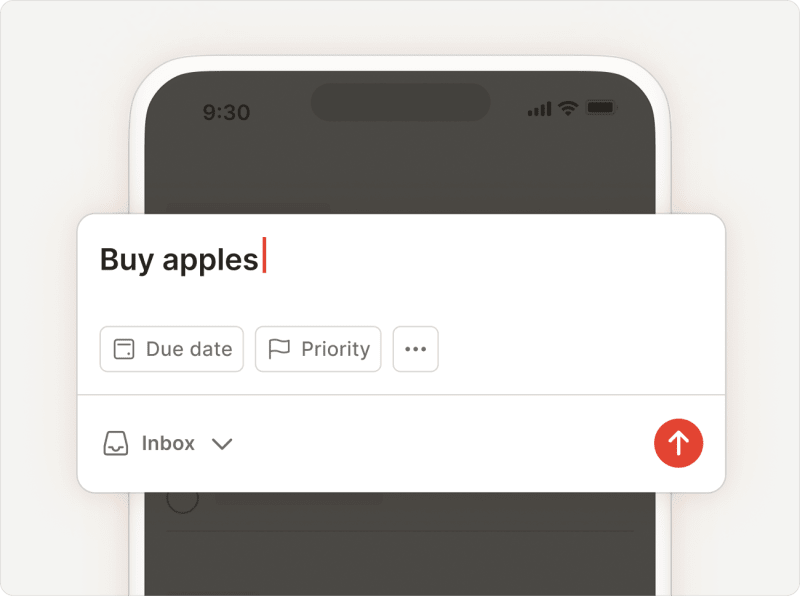
- Tap the red Dynamic Add button at the bottom-right.
- Enter the task name.
- Tap the submit icon to save the task.
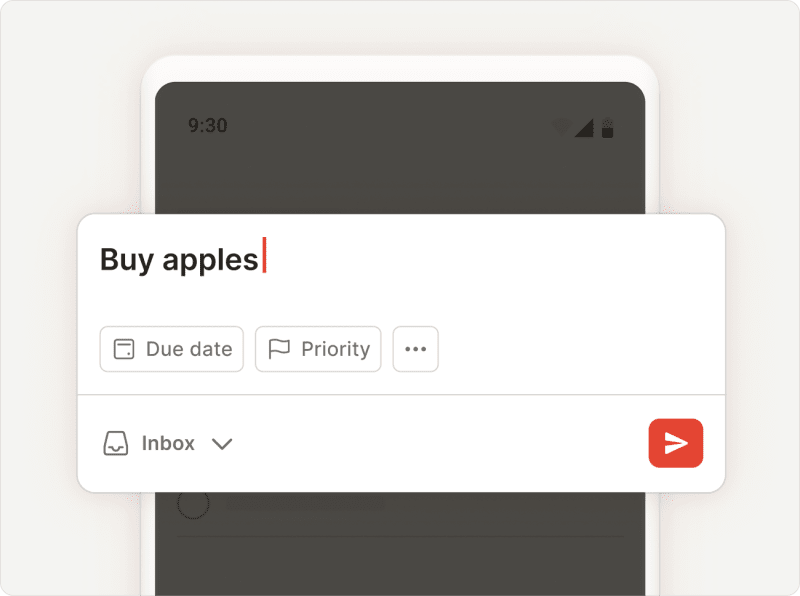
- Tap the red Dynamic Add button at the bottom-right.
- Enter the task name.
- Tap the send icon to save the task.
Any task that isn’t added to a specific project goes to your Inbox by default.
Prioritize urgent tasks
Flag the most important tasks in your Inbox using task priorities, so you won’t forget to finish them first. You can also sort or group tasks by priority, so you have more visibility over your most urgent tasks.
Process your Inbox regularly
Set aside a few minutes each day or week to process all the tasks you’ve collected in your Inbox. Move your tasks to their relevant projects, then add a date to each one.
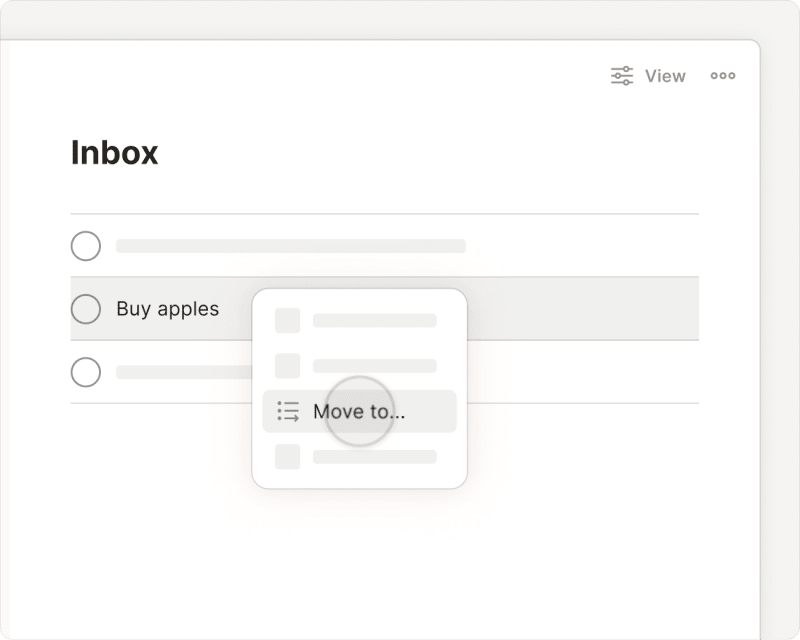
- Open your Inbox.
- Click the three dots icon next to the task name.
- Select Move to….
- Enter the project name or the section name.
- Add a date to each task, so you’ll remember to come back to it later.
Rachel · Customer Experience Specialist
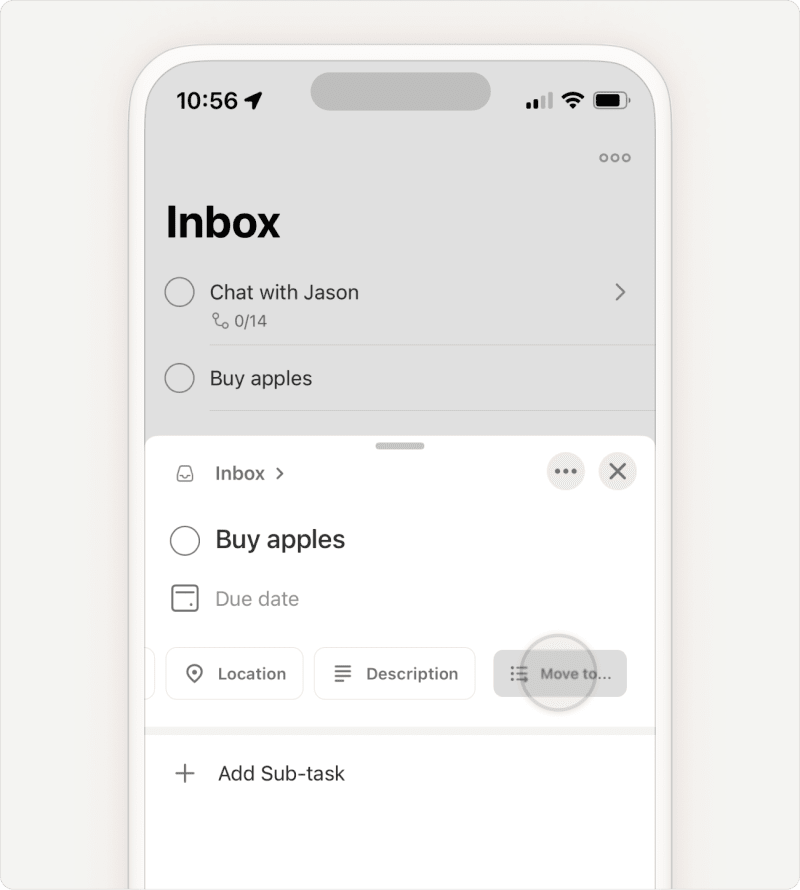
- Open your Inbox.
- Tap a task to open the task view.
- Tap Move to… in the row of options below the task name. You may need to swipe left to find it.
- Enter the project name or the section name.
- Add a date to each task, so you’ll remember to come back to it later.
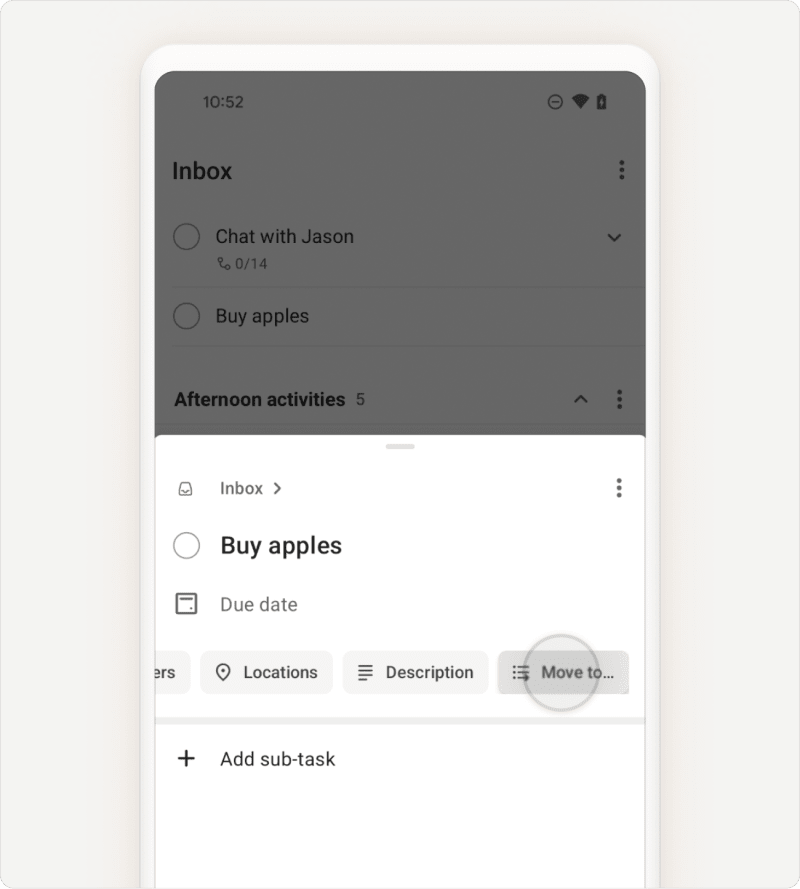
- Open your Inbox.
- Tap a task to open the task view.
- Tap Move to… in the row of options below the task name. You may need to swipe left to find it.
- Enter the project name or the section name.
- Add a date to each task, so you’ll remember to come back to it later.
Not sure what to put in a project and what to keep in the Inbox? Learn about the difference between the Inbox and a project.
Delete unnecessary tasks
It’s okay to decide that a task doesn’t need your attention. You can delete the task from your Inbox.
Get in touch
If you’re having trouble adding, moving, or scheduling tasks in the Inbox, get in touch with us.