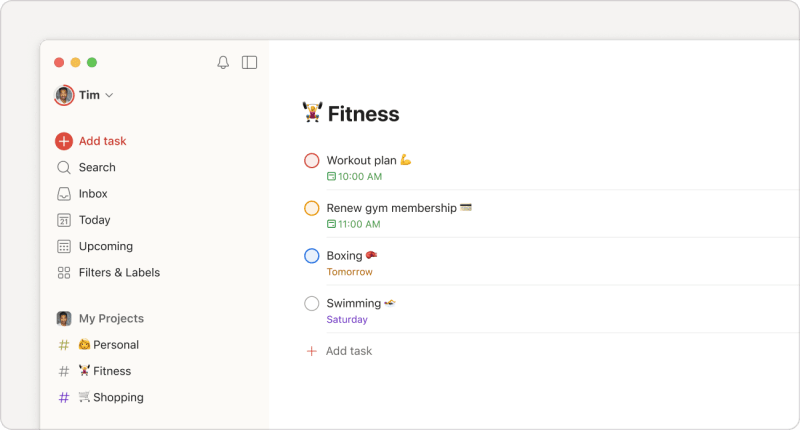
Use emoji to add some extra character to Todoist ✨ Emoji can be added to comments and anything you can name: tasks, sections, projects, labels and filters. Here’s how:
- When entering text, open the emoji keyboard by pressing Ctrl + Cmd + Space on macOS or the Windows key + . (period) on Windows.
- Click on an emoji to add it.
Quick tip
Using Todoist on Linux? Try using a browser add-on, like Emoji Keyboard by JoyPixels for Chrome or Awesome Emoji Picker for Firefox.
- When entering text, open the emoji keyboard by pressing the Windows key + . (period).
- Click on an emoji to add it.
- When entering text, open the emoji keyboard by pressing Ctrl + Cmd + Space.
- Click on an emoji to add it.
- When entering text, tap the emoji key at the bottom left.
- Tap on an emoji to add it.
- When entering text, tap the emoji icon.
- Tap on an emoji to add it.
FAQ
No, Todoist supports only Unicode emoji. The two main reasons for not supporting anything other than Unicode are:
- All platforms support Unicode emoji.
- All platforms provide superior native experiences for Unicode emoji, including:
- Keyboard support
- Ability to visually browse available emoji
- Localized emoji names