Make sure to check if you're on the latest version of the Todoist apps, so they always run smoothly and stay bug-free. These version updates are released on a regular basis, so you receive new product or security features, enhancements, and bug fixes.
Check your app version number
If you're not sure if you have the latest version, here's how to check the app version number:
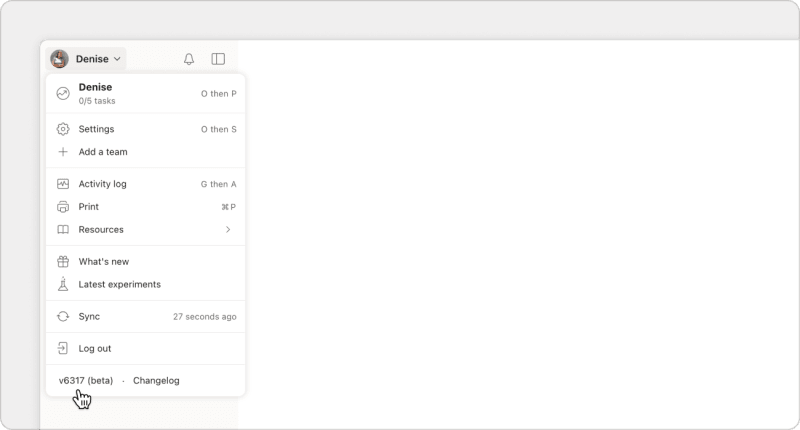
Open Todoist in a browser and click your avatar at the top-left. The version number is listed at the bottom of the menu. If you're using an outdated version, Todoist displays a green "New version available" notice and an orange icon on your avatar.
Open Todoist for macOS and click your avatar at the top-left. Both the Todoist version and app version are listed at the bottom of the menu.
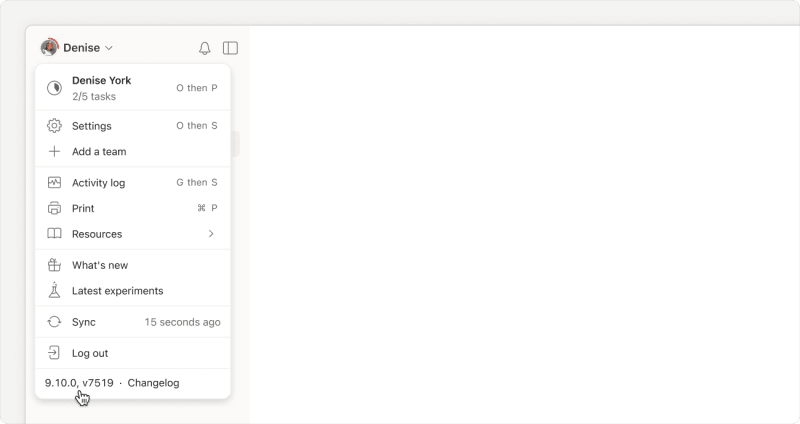
Another way to find the app version is to look at the About information:
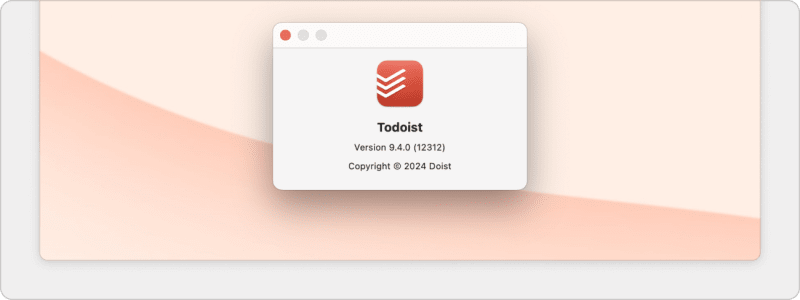
- Open Todoist for macOS.
- Click Todoist next to the Apple logo in the main menu.
- Select About Todoist.
If you're not sure it's the latest version, check either the changelog or the version history in the Mac App Store.
Open Todoist for Windows and click your avatar at the top-left. Both the Todoist version and app version are listed at the bottom of the menu.
Another way to find the app version is through the Todoist icon in the system tray:
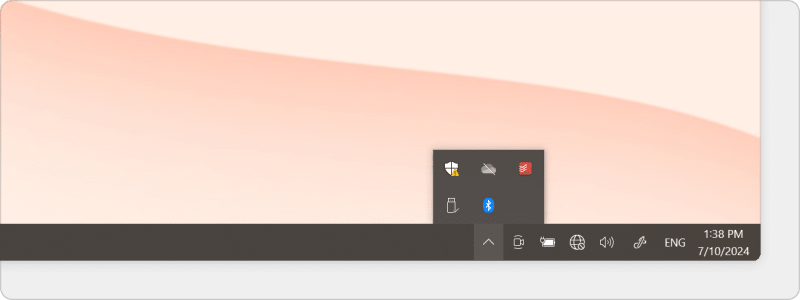
Right-click the Todoist icon in the system tray. If you can't find the Todoist icon, click the Show hidden icons arrow in the taskbar.
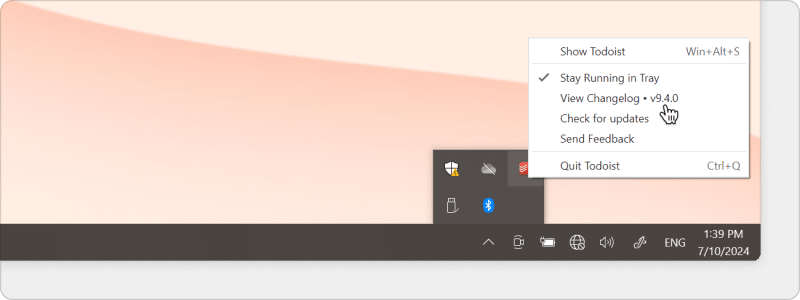
Then, right-click the Todoist icon. The installed version is displayed after View Changelog.
If you're not sure it's an outdated version, check the changelog to see the latest version number and what's included.
Click the Todoist icon in the tray menu to check the app version number.
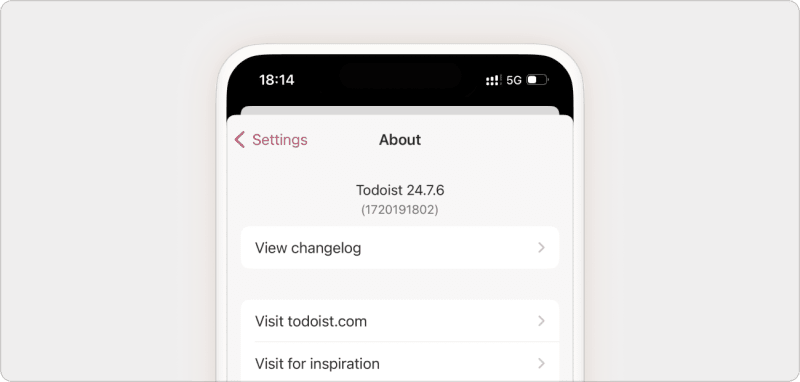
- Open Todoist for iOS.
- Tap Browse at the bottom-right.
- Tap the gear icon at the top-right.
- Select About. You'll see the version number at the top.
If you're not sure if you have the latest version:
- Open the App Store on your Apple device.
- Tap the search icon at the bottom-right.
- Search for Todoist for iOS.
If the button beside its name says "Open", you're on the latest version. If the button says "Update", you're still running the older version and you need to update the app.
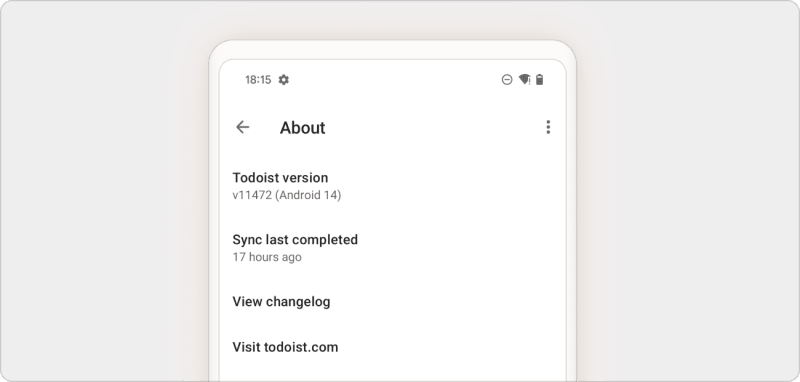
- Open Todoist for Android.
- Tap Browse in the navigation bar.
- Tap the gear icon at the top-right.
- Tap About. You'll see the version number at the top-left.
If you're not sure if you have the latest version:
- Open the Play Store on your Android device.
- Tap Search at the bottom.
- Search for Todoist for Android.
If the button below its name says "Open", you're on the latest version. If the button says "Update", you're still running an older version and you need to update the app.
Update the Todoist web app
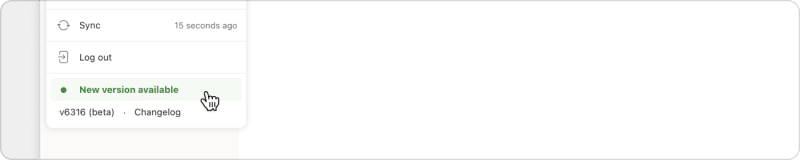
To update the Todoist web app:
- Log in to your account in a browser.
- Click your avatar at the top-left.
- Click the “New version available” notice, if there is one.
- Wait for the update to install and for Todoist to load.
Note
Update the Todoist desktop and mobile apps
Updates to the Todoist desktop and mobile apps may include improvements to notifications, widgets, security, or features like the global Quick Add shortcut.
If you’ve downloaded Todoist for macOS from the website, updates are automatically downloaded in the background and installed when you quit the app. The app takes 10 or more seconds to install the update.
If you need to manually reinstall the desktop app:
- Quit the Todoist app (⌘Q or Command + Q).
- Drag the app from the Applications folder and to the Trash.
- Download the latest version.
- Reinstall the Todoist app.
- Log in to your Todoist account.
If you’ve downloaded Todoist for macOS from the Mac App Store, follow these steps to manually update the app.
If you’ve downloaded Todoist for Windows from the website, updates are automatically downloaded in the background and installed when you quit the app. The app takes 10 or more seconds to install the update.
If you need to manually reinstall the desktop app:
- Quit and uninstall the Todoist app.
- Press Windows + R.
- Enter the following:
%APPDATA%/Todoist - Delete the contents of the folder.
- Download and reinstall the app.
- Log in to your Todoist account.
If you’ve downloaded Todoist for Windows from the Microsoft Store, follow these steps to manually update the app.
Open the App Store on your iPhone or iPad and follow the steps to manually update Todoist to the latest version.
Open the Google Play Store on your Android device and follow the steps to manually update Todoist to the latest version.
Get help
If you’re having trouble updating the Todoist web app, desktop apps, or mobile apps to the latest version, get in touch with us.