The task view lets you add valuable information to a task all in one place. Add a description, date, deadline, priority, label, comments, sub-tasks, file attachments, and reminders without the hassle of context switching.
General task actions
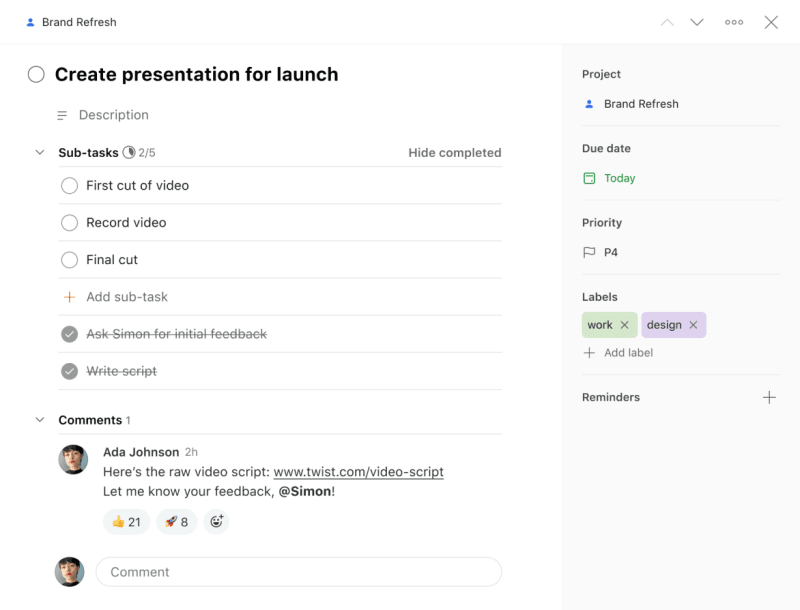
In Todoist, click a task to open the task view. Here, you can:
- Click the project name at the top to open the task’s project and review all its tasks.
- Click the section name to open and view all the tasks under this section.
- Click a sub-task's parent task to open its task view. You'll find the parent task above the sub-task name.
- Click the sub-task icon to view other sub-tasks of the parent task.
- Edit the task name.
- Add or edit a task description.
- Click the chevron icons at the top to view the next or previous task in the list.
- View, add, edit, or reorder sub-tasks in the Sub-tasks section.
- Show or hide completed sub-tasks.
- View and add comments in the Comments section.
On the right-hand sidebar, you can:
- Click the project name to move the task to a different project or section.
- Click Date to add a date, time, and duration to the task.
- Click Deadline on the right-hand sidebar to add a deadline (available on paid plans).
- Click Assignee to assign the task (available on shared projects)
- Click Priority to set the task priority.
- Click Labels to add a label to the task.
- Click Reminders to add a task reminder.
- Click Location to add a location reminder to the task (available on paid plans).
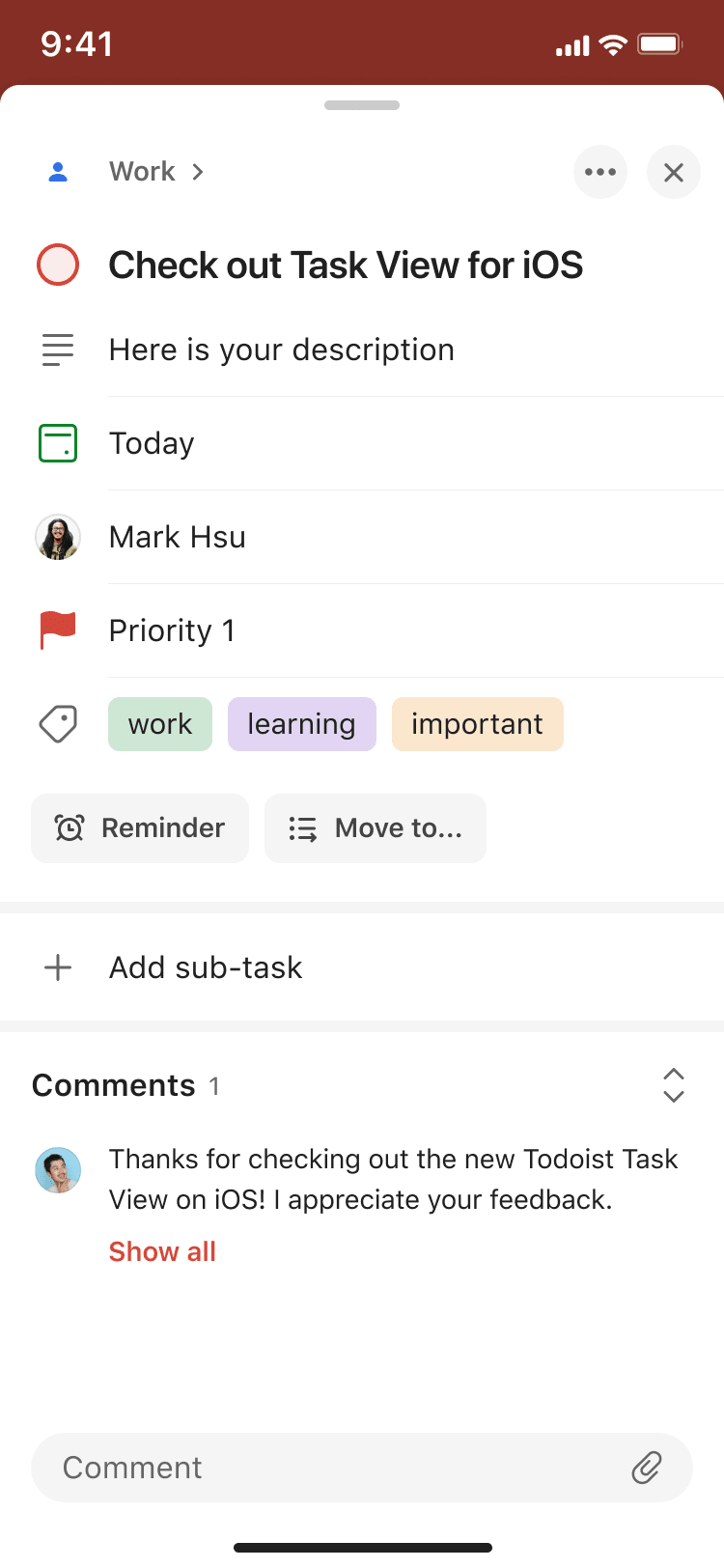
In Todoist, tap a task to open the task view. Here, you can:
- Tap the task name and make changes to it.
- Tap the task breadcrumb to go to the project or section of the task.
- Tap the Date field below the task breadcrumb to set or change the task date, time, or duration.
- View, add, edit, or reorder sub-tasks in the Sub-tasks section.
- Tap the Comment field to add a comment, notify someone about the comment, or attach a file to the task.
You'll find several task chips for specific task actions:
- Tap the Description chip to add or change a task description.
- Tap the Assignee chip to assign the task to someone (available on shared projects).
- Tap the Priority chip to set the task priority.
- Tap the Reminder chip to add a custom reminder.
- Tap the Labels chip to add or remove labels from the task.
- Tap the Deadline chip to add a deadline (available on paid plans).
- Tap the Location chip to add a location reminder.
- Tap the Move to... chip to move the task to a different project.
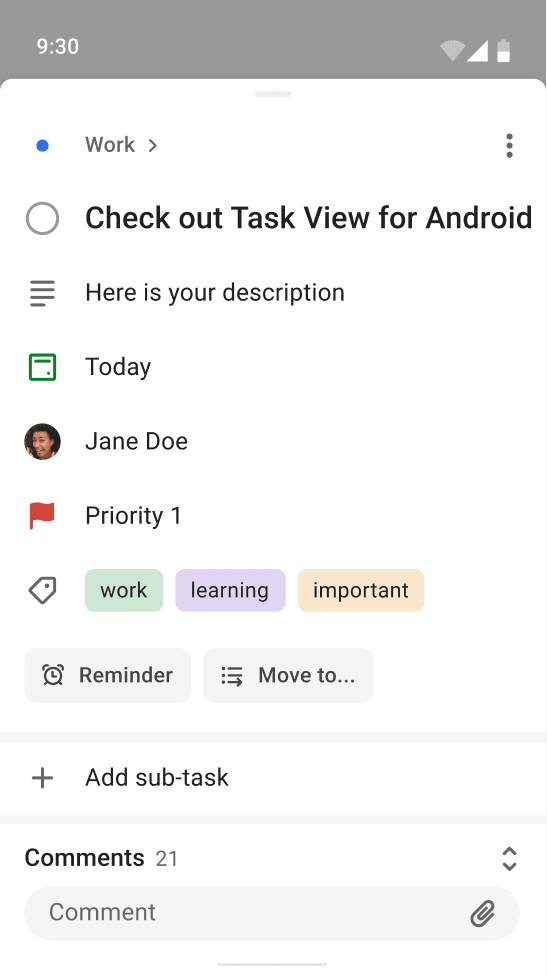
In Todoist, tap a task to open the task view. Here, you can:
- Tap the task breadcrumb to go to the project or section of the task.
- Tap the task name and make changes to it.
- Tap the Date field to set or change the task date, time, or duration.
- View, add, edit, or reorder sub-tasks in the Sub-tasks section.
- Tap the Add a comment field to add a comment, notify someone about the comment, or attach a file to the task.
You'll find specific task chips for specific task actions:
- Tap the Deadline chip to add a deadline (available on paid plans).
- Tap the Priority chip to set the task priority.
- Tap the Labels chip to add or remove labels from the task.
- Tap the Reminder chip to add a custom reminder.
- Tap the Location chip to add a location reminder.
- Tap the Description chip to add or change a task description.
- Tap the Move to... chip to move the task to a different project.
Task menu options
You'll find the task menu at the top-right of the task view. Here, you can:
- Click Duplicate to create a copy of the task.
- Click Copy link to task to grab the task link.
- Click Add comments via email to generate an email address to the task. Any emails forwarded to this address becomes a task comment.
- Click View activity to see who created the task, made changes, completed the task, and more. If you're on the free plan, you can view up to 7 days of Reporting history.
- Click Print to open the browser's print dialog and print a hard copy of the task.
- If you're using the Todoist desktop apps, click Open in new window to create a separate app window for the current task.
- Click Add extension... to browse and install useful task extensions.
- Click Delete to delete the task.
If the task has a recurring date, you'll see additional recurring task options in the task menu:
- Click Complete to complete the task.
- Click Complete & reset sub-tasks to complete the parent task and reset its sub-tasks in the next occurrence.
- Click Complete forever to complete the task and end its recurrence permanently.
You'll find the task menu at the top-right of the task view. Here, you can:
- Tap Edit Task to make changes to a task.
- Tap Duplicate Task to make a copy of the task.
- Tap Copy Link to Task to copy the link of the task.
- Tap Show or Hide Completed Sub-tasks to display all completed sub-tasks.
- Tap View activity to see who created the task, made changes, completed the task, and more. If you're on the free plan, you can view up to 7 days of Reporting history.
- Tap Delete Task to delete the task.
If the task has a recurring date, you'll see additional options in the task menu:
- Tap Complete to complete the task without resetting the sub-tasks.
- Tap Complete & Reset Sub-tasks to complete the task and reset its sub-tasks in the next occurrence.
- Tap Complete Forever to complete the task and end its occurrence permanently.
You'll find the task menu at the top-right of the task view. Here, you can:
- Tap Edit task to make changes to a task.
- Tap Duplicate task to make a copy of the task.
- Tap Copy link to task to copy the link of the task.
- Tap Show orHide completed sub-tasks to display or hide all completed sub-tasks.
- Tap View activity to see who created the task, made changes, completed the task, and more. If you're on the free plan, you can view up to 7 days of Reporting history.
- Tap Delete task to delete the task.
If the task has a recurring date, you'll see additional options in the task menu:
- Tap Complete task to complete the task without resetting the sub-tasks.
- Tap Complete & reset sub-tasks to complete the task and reset its sub-tasks in the next occurrence.
- Tap Complete forever to complete the task and end its occurrence permanently.
Get in touch
If you're having any trouble making changes to tasks while in the task view, get in touch with us.