Check your daily progress or trace back changes made to a task with Reporting. It gives you complete visibility into what you and your teammates have been working on in Todoist. Information is organized by date and filtered by project, person, or event type.
View account activity
- Click your avatar at the top-left of Todoist.
- Select Reporting.
To filter activity, use the menus at the top of Reporting. You can filter by project, person, event type, workspace, or select a date range to view activity within a specific time period.
- Tap Browse at the bottom-right.
- Tap your avatar at the top-left.
- Tap your name to open Reporting.
In the Productivity view, there are two ways to filter the logs:
- To filter by event or collaborator (for a shared project), tap the filter icon at the top-right.
- To filter by project, tap the project icon at the top.
Note
- Tap Browse at the bottom-right.
- Tap your avatar at the top-left.
- Tap your name to open Reporting.
In the Productivity view, there are two ways to filter the logs:
- To filter by event or collaborator (for a shared project), tap the filter icon at the top-right.
- To filter by project, tap the project icon at the top.
Note
Presets
When you open Reporting, you’ll see a filter preset showing tasks you’ve completed. You can also choose from a selection of other presets to quickly focus on the activity that matters most.
To switch between filter presets:
- Open Reporting.
- Click the dropdown beside the Activity header.
- Choose from the list of presets.
| Presets | What it shows |
|---|---|
| All activity | Shows activity logs across all workspaces, projects, collaborators, and events. |
| My completed tasks | Shows tasks you have completed. |
| My favorites | Shows activity from projects you have favorited. |
| Recently added tasks | Shows tasks added by any user across all workspaces and projects. |
| Recently completed tasks | Shows tasks completed by any user across all workspaces and projects. |
Note
Reporting information
With Reporting, you'll see a complete log about specific activities in Todoist. See the table below for the full list:
| Logged activities | Excluded activities |
|---|---|
| Added tasks | Added labels |
| Edited tasks | Edited labels |
| Completed tasks | Deleted labels |
| Uncompleted tasks | Added projects |
| Deleted tasks | Edited projects |
| Added comments | Archived projects |
| Deleted comments | Deleted projects |
Note
View project activity
- Click the three dots icon at the top-right of a project.
- Click the Activity tab.
- Tap Browse at the bottom-right.
- Select a project.
- Tap the three dots icon at the top-right of the project.
- Select View activity.
To change the project or view activity across all projects:
- Tap the project list icon at the top-right of Reporting.
- Select All projects or a specific project.
- Tap the checkmark icon at the top-right.
If you're working with shared projects, you can filter by collaborator or event type:
- Tap the filter icon at the top-right of Reporting.
- Tap Filter by action. If you're in a shared project, you'll see the Filter by collaborator option.
- Select how you want to filter the project.
- Tap the checkmark icon at the top-right.
- Tap Browse at the bottom-right.
- Tap the three dots icon at the top-right of a project.
- Select View activity.
To change the project or to view activity across all projects:
- Tap the project list icon at the top-right of Reporting.
- Select All projects or the specific project you want.
To filter by person (in shared projects) or event type:
- Tap the filter icon at the top-right of Reporting.
- Select By event type or By collaborator (only available in shared projects) in the menu.
View task activity
Click or tap the task menu to see who created the task, made changes, completed the task, and more. However, you can only view activity information. There's no option to make changes or delete these entries.
Quick tip
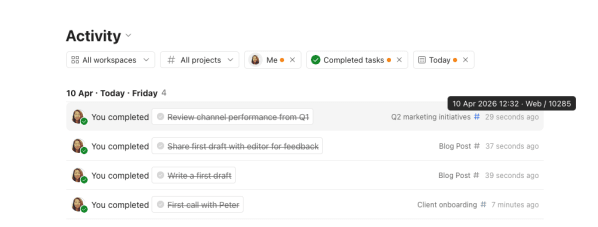
Hover your cursor over an activity entry's timestamp, and it'll tell you if a task was created, changed, completed, or deleted on the mobile app, desktop app, the web, or through an integration.
Export
The Export option allows you to download a markdown file showing the filtered activity. Markdown files can be opened in basic text editors or dedicated markdown editors.
To export your Reporting activity:
- Open Reporting.
- Filter the activity you’d like to see.
- Scroll down to load the logs.
- Click Export at the top-right.
Warning
The Export option isn't available on Todoist for iOS and iPadOS. You'll need to switch to the web or desktop apps to export your filtered activity.
The Export option isn't available on Todoist for Android. You'll need to switch to the web or desktop apps to export your filtered activity.
Get in touch
If you’re having trouble viewing Reporting, or checking specific task or project activity in Todoist, get in touch with us.