The Today view in Todoist lets you start your day with focus by presenting every task scheduled for today across all your projects. By reviewing, time blocking, or rescheduling these tasks, you can create a realistic plan to tackle your goals and stay productive without feeling overwhelmed.
Note
Set task priorities
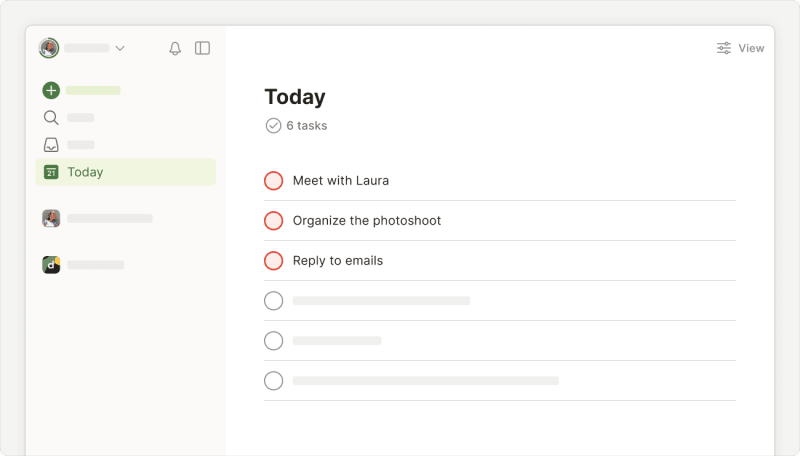
What are the three most important tasks you need to complete today? Mark those as priority 1 so they’ll show up at the top of your Today view in red. Work on those first when you’re still fresh and energized.
Time-block tasks
Time blocking takes the guesswork out of when you have to work on a specific task. Here’s how to do it in the calendar layout:
- Click Display at the top-right.
- Select the calendar layout.
- Click the Plan button at the top-right.
- Drag a task to a specific hour in the calendar. This automatically creates a time slot for the task.
- Hover your cursor at the bottom of the task until you see the down cursor.
- Pull down to adjust the duration of the task.
Touch and drag any all-day tasks into the calendar to time-block them into your schedule. This adds a time and duration to the task automatically.
Note
Reschedule tasks
Have too many tasks scheduled for the day? It’s overwhelming to see a list a mile long and know you can’t possibly get it all done. Keep your Today view focused and realistic by rescheduling some tasks for later in the week.

Sergio · Customer Success Specialist
Apply Today view best practices
As you get the hang of planning your day regularly, the Today view becomes a great tool to create a routine that sets you up for success. Here are some tips and best practices to try:
Apply sorting or grouping options
If you’ve got quite a list for today, sort or group tasks based on criteria that make the most sense to you. For example, group by project or sort by date.
Use the Plan sidebar
Keep tasks from slipping through the cracks by checking the Plan sidebar in the calendar layout. You’ll see overdue, all-day, and time-blocked tasks you can review and manage in the calendar.
Postpone tasks that need more time

Give yourself permission to truly end your workday and start fresh tomorrow. Instead of letting overdue tasks snowball from one day to the next, postpone them to tomorrow or later in the week, so you can end every day at Todoist Zero. It’s not cheating – it’s about being flexible and rolling with the punches.
Quick tip
If you’re using the list layout, you can also drag your tasks to the bottom of the Today view to postpone them for tomorrow. Just make sure sorting and grouping options are turned off.
Build a habit
When you make a habit of organizing your Today view first, you’ll never waste time deciding what to work on next. After finishing a task, just open your Today view again, click the circle to mark it complete, and move on to the next item on the list.
To see what you’ve finished today, turn on Completed tasks.
Quick tip
Get in touch
If you have any questions about planning your day, or if you’ve got concerns with using the Today view, get in touch.